
How do I ... tutorials
How do I change my MyMRU password?
This tutorial explains how you can change your password used to access MRU services such as email, Blackboard, MyMRU and campus computers. Sometimes it is necessary to change your password in order to access these services for the first time. Passwords should be changed every 3 months. Changing your MyMRU password also changes all your other passwords except for your Banner 8 password, which must be changed separately. Banner 9 uses your MyMRU password.
Note: Changing your password will not recover a lost password.
Steps
1. Open an Internet browser and navigate to mymru.ca.
2. Click the Change your password link.
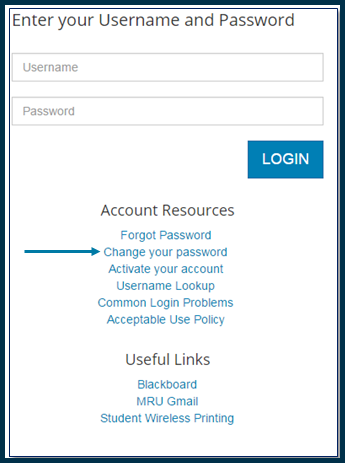
3. You will need to login with your MRU username and password.
4. Complete the Password Change Authorization form shown in the screen capture below.
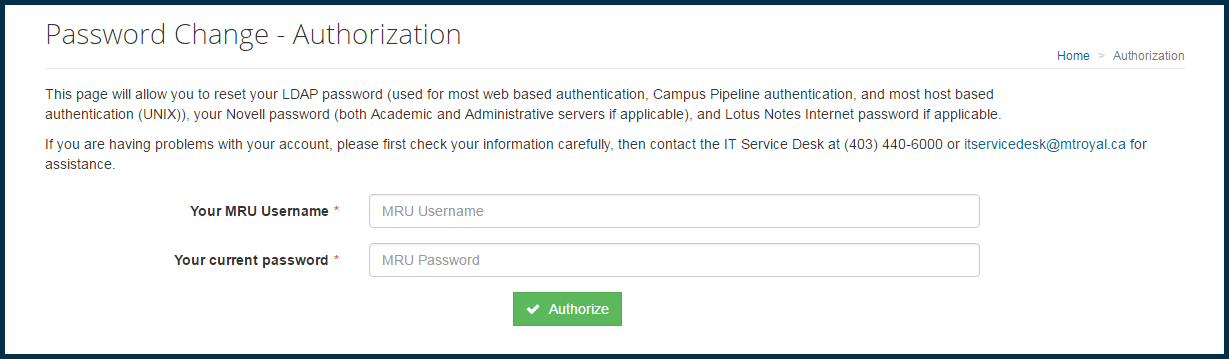
5. Click Authorize.
6. Follow the guidelines shown in the screen capture below. If you get stuck choosing a new password, try the Launch the Password Generator link for ideas.
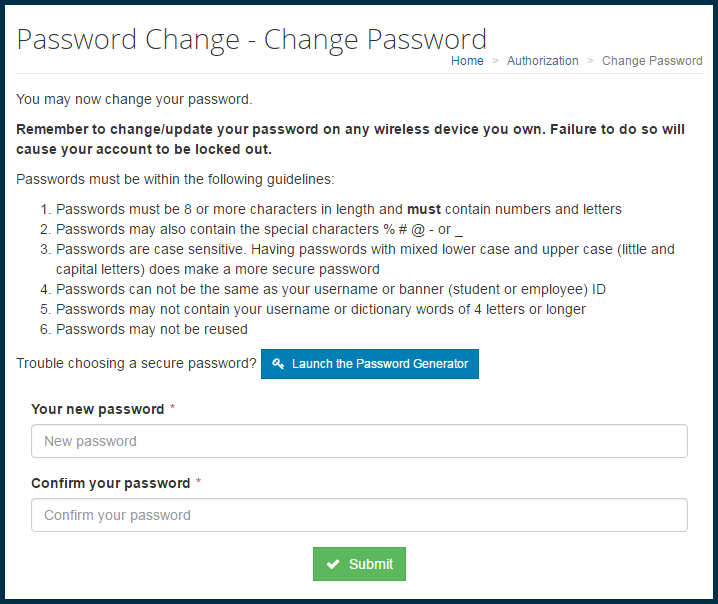
7. Enter and confirm your new password and click Submit.
8. You will be notified when the password has been changed and you can then close the window.
Please allow 5 minutes before logging in to mymru.ca for the first time.